Showing posts with label Mobile Application. Show all posts

Select Values From Local Database(.sdf) Mobile Application Smart Device Visual Studio 2008 in C#

Select Values From Local Database Connection.

Retrive Values From Local Database (.sdf)(Database connection)  To Display DatagridView in Window Application Smart Device 2008 C#


                       DEMO


Coding


using System;
using System.Linq;
using System.Collections.Generic;
using System.ComponentModel;
using System.Data;
using System.Drawing;
using System.Text;
using System.Windows.Forms;


using System.Data.SqlServerCe;


namespace SmartDeviceProject1
{
    public partial class Form1 : Form
    {
        public Form1()
        {
            InitializeComponent();
        }
        private void Form1_Load(object sender, EventArgs e)
        {

        }   
        private void button1_Click_1(object sender, EventArgs e)
        {     

       SqlCeConnection con = new SqlCeConnection

 ("Data Source=" +(System.IO.Path.GetDirectoryName(System.Reflection.Assembly.GetExecutingAssembly().GetName().CodeBase)) + "\\AppDatabase1.sdf;Persist Security Info=False");

       con.Open();
       SqlCeCommand cmd = new SqlCeCommand("select name from reg",con);
       SqlCeDataAdapter adp = new SqlCeDataAdapter(cmd);
       DataTable dt = new DataTable();
       adp.Fill(dt);
       dataGrid1.DataSource = dt;

        }
    }   


}


First - Add Database Connection - Add - Add Reference - System.Data.SqlCeConnection.


Next  -  Inserted Table Values - Display DataGridView


Next - Design Add - Button  & DataGridview


Next - Add Namespace - Get Connection String - Retrive to Bind GridView


How To Local Database Connection Mobile Application Smart Device Visual Studio 2008 in C#

Connect Local Database Mobile Application Smart Device Visual Studio 2008.


Database Connect Local Database For Mobile Application Smart Device Visual Studio2008 Get Connection Strings.


First - Add New Database File - Add- Add New Item


Next - Finish 


Next - Create New Table - Add Table Name - Column Name Datatype


Next - Connect Database File - Click My Computer 


Next - Add Database Path - Test Connect Succeded - Ok


Next - Get Connected Path


How To Run Mobile Application Smart Device Visual Studio 2008 Using in C#

Run Mobile Application Smart Device Visual Studio 2008

Working Controls & Run The Mobile Application Smart Device  2008 Using window Mobile Application Emulators in C#.


                               DEMO


 lblResult.Text = (Convert.ToInt32(txtNumber1.Text) + Convert.ToInt32(txtNumber2.Text)).ToString();


First - Create New Form - Add Input Controls 


Next - Textbox Change Id


Next - Button Control Add


Next - Add Display Control (Label)


Next - Color Add Display Control


Next - Button Double Click - Add -  Addition Program


Next - Click - Run[F5] Button 


Next - Select - Windows Emulator 


Output


How To Open Mobile Application Development in Visual Studio Smart Device 2008 Using in C#.Net

Mobile Application Visual Studio Smart Device 2008 

Mobile Application Development Open & Access Visual Studio 2008 in Smart Device in Show & Run the Windows Phone Mobile Emulator in C#.Net.


                                      DEMO


First - File - Open - C# - Smart Device - Select - Smart Device Project1 - Add - Name & Location.


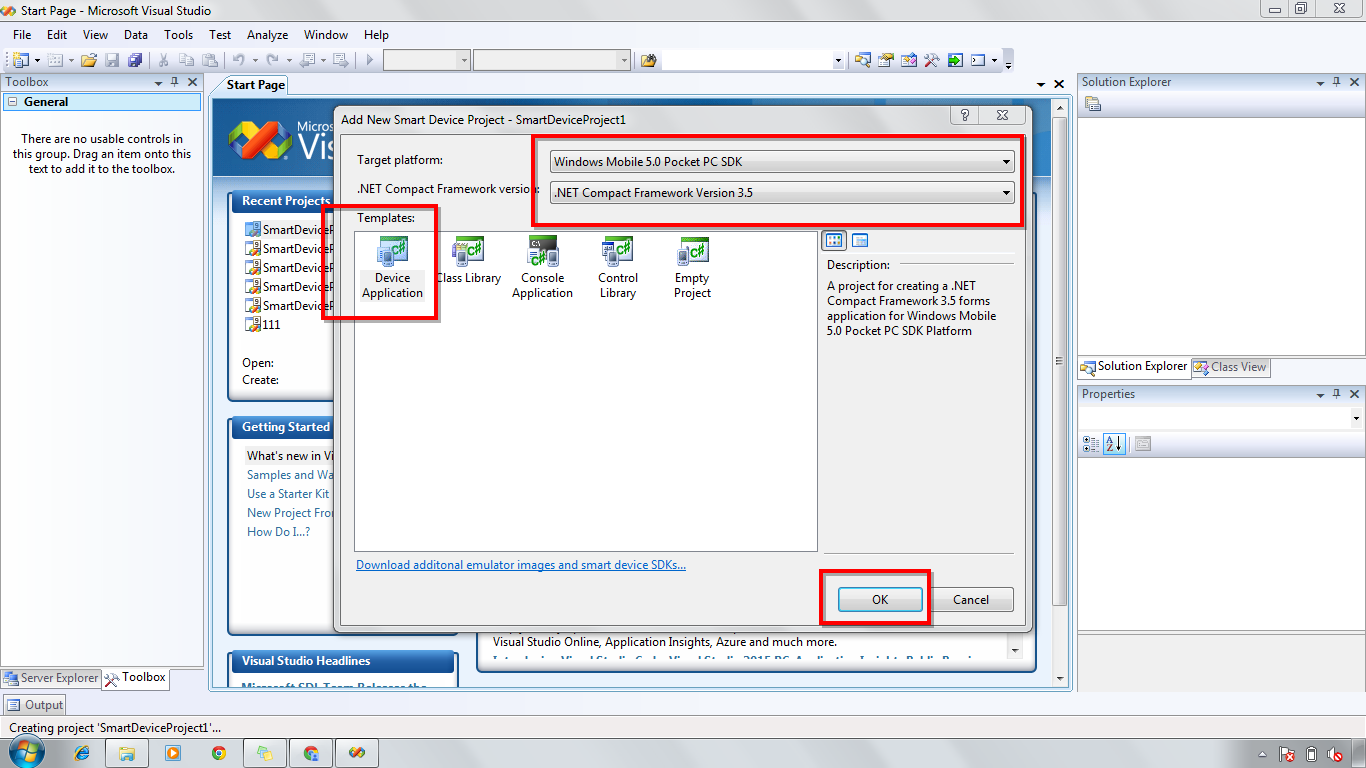
Next - Select - Target Platform & .Net Component Platform - Next Add - Device Application - OK.


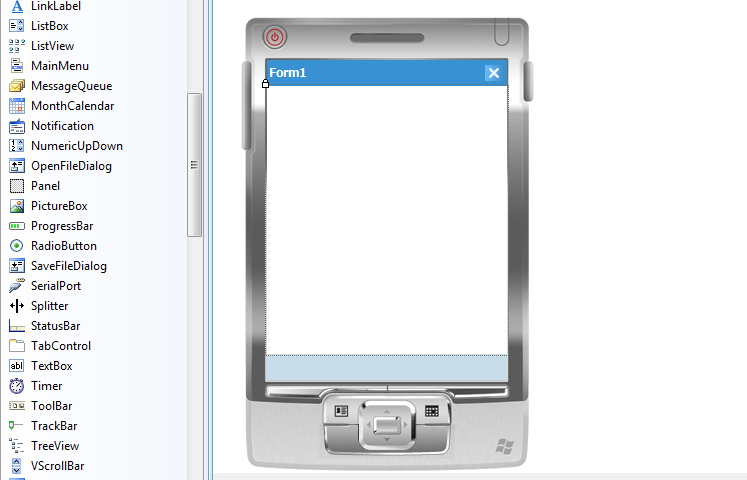
Next - Show The - Mobile Application  Form