Showing posts with label DataGridView. Show all posts

Validation For DataGridview Values Before Insert To DataBase(Avoid Null Values) Using C# Window Application

Validation For DataGridview Values Before Insert To  DataBase

DataGridview Add Directly To RunTime  Validation Null Values Avoid To Insert  DataBase Using C# Window Applicatio.

                                         DEMO


                                    C# CODING

using System;
using System.Collections.Generic;
using System.ComponentModel;
using System.Data;
using System.Drawing;
using System.Linq;
using System.Text;
using System.Threading.Tasks;
using System.Windows.Forms;
using System.Data.SqlClient;

namespace WindowsFormsApplication2
{
    public partial class Home11 : Form
    {
        public Home11()
        {
          
            InitializeComponent();
        }

        private void Home11_Load(object sender, EventArgs e)
        {
           
        }      

        private void dataGridView1_RowValidating(object sender, DataGridViewCellCancelEventArgs e)
        {
            if ((dataGridView1[0, e.RowIndex].Value == null) || (dataGridView1[1, e.RowIndex].Value == null))
            {
                // e.Cancel = true;
                MessageBox.Show("Fill Empty Row");

            }
        }

        private void button1_Click(object sender, EventArgs e)
        {
            if (dataGridView1.Rows.Count>1)
            {
                // Your Insert Command

                MessageBox.Show("Data Saved");
           
            }
        }
          
    }
}


Next - Add New Window Form - Select DataGridView - EditColumn - Add Field Name & Header Text


Next - Created DataGridView Column 


Next - DataGridview - Event - Select RowValidating Click 


Next - Add  DataGridView Validating Null Values 


Next - Run [F5]  The Program - Validation for DataGridView


Remove or Delete DataGridView Selected Row Button Click Using in C# Window application

Remove or Delete DataGridView Selected Row

DataGridview Selected Row Remove or Delete Button Click Event in C# Window Application.

                                         DEMO


     C# CODING


using System;
using System.Collections.Generic;
using System.ComponentModel;
using System.Data;
using System.Drawing;
using System.Linq;
using System.Text;
using System.Threading.Tasks;
using System.Windows.Forms;
using System.Data.SqlClient;

namespace WindowsFormsApplication2
{
    public partial class Home11 : Form
    {
        public Home11()
        {
          
            InitializeComponent();
        }

        private void Home11_Load(object sender, EventArgs e)
        {
            SqlConnection con = new SqlConnection(@"Data Source=(LocalDB)\v11.0;AttachDbFilename=C:\Users\Drizzles\Documents\Visual Studio 2012\WindowsFormsApplication2\WindowsFormsApplication2\Database1.mdf;Integrated Security=True");
            con.Open();

            SqlCommand cmd = new SqlCommand("select * from country", con);
            SqlDataAdapter adp = new SqlDataAdapter(cmd);
            DataTable dt = new DataTable();
            adp.Fill(dt);
            SqlDataReader rd = cmd.ExecuteReader();
            if (rd.Read())
            {
                dataGridView1.DataSource = dt;
            }
          }

        private void button1_Click(object sender, EventArgs e)
        {
            if (dataGridView1.Rows.Count>1)
            {
                if (dataGridView1.Rows[dataGridView1.CurrentRow.Index].IsNewRow != true)
                {
                    dataGridView1.Rows.Remove(dataGridView1.CurrentRow);
                }
            }
            else {

                MessageBox.Show("No Record(s) Found");           
            }
        }      
    }
}


First - Add New Window Form - Select DataGridview From ToolBox


Next - DataGridview Bind Database Fields   & Button Click Event - Selected Row Delete Coding For DataGridView


Run[F5] - Remove Selected Row Values


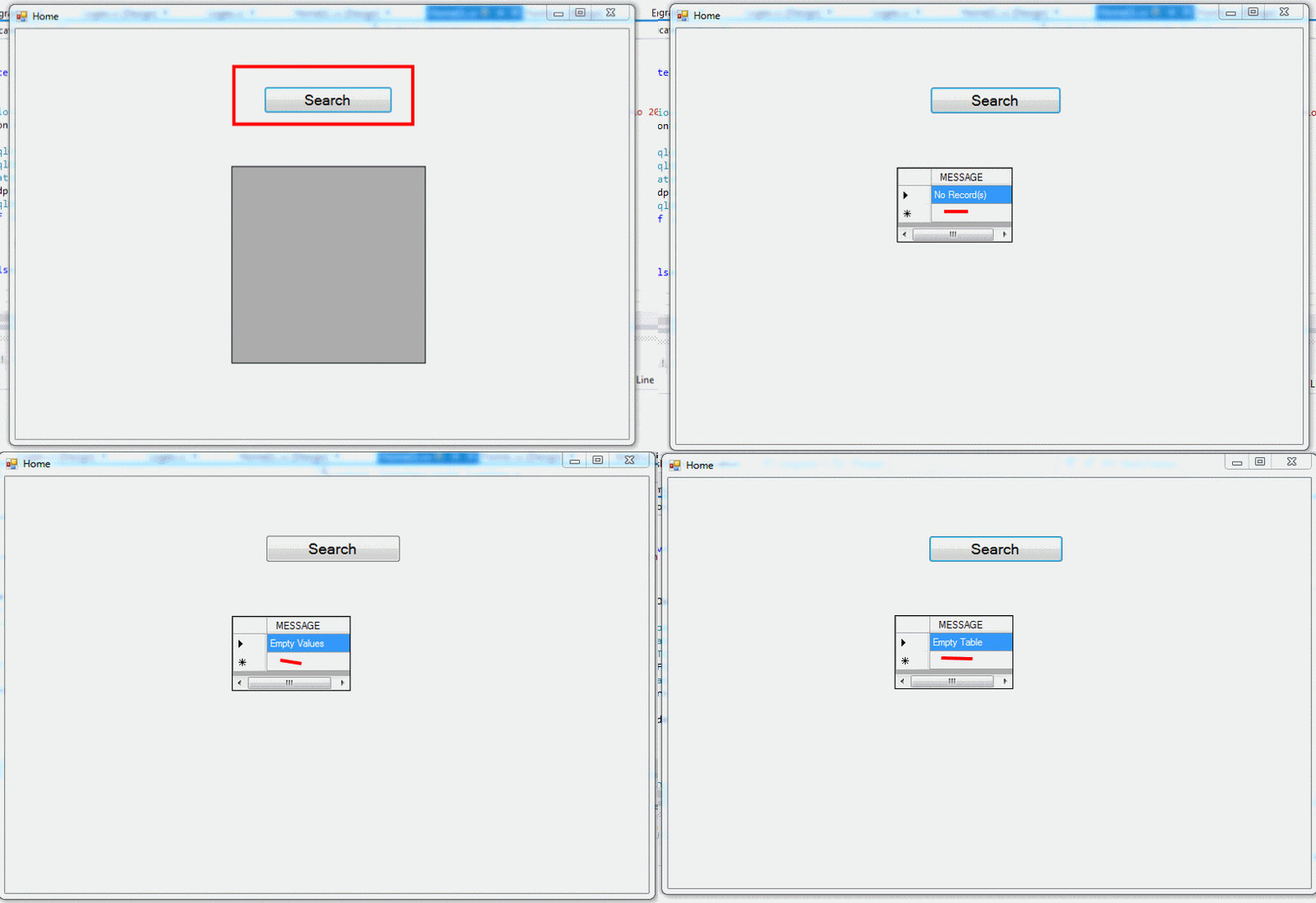
DataGridView Show Error Message Like No Records in Window Application C#

DataGridView Show Error Message 

If DataGridView Display Error Message  Database Table Values Empty Or Null Using C# Window Application.

                    
                              DEMO


                            C# CODING


using System;
using System.Collections.Generic;
using System.ComponentModel;
using System.Data;
using System.Drawing;
using System.Linq;
using System.Text;
using System.Threading.Tasks;
using System.Windows.Forms;
using System.Data.SqlClient;

namespace WindowsFormsApplication2
{
    public partial class Home11 : Form
    {
        public Home11()
        {
          
            InitializeComponent();
        }

        private void Home11_Load(object sender, EventArgs e)
        {
          
        }    

        private void button1_Click(object sender, EventArgs e)
        {           

   SqlConnection   con = new SqlConnection(@"Data Source=(LocalDB)\v11.0;AttachDbFilename=C:\Users\Litz\Documents\Visual Studio 2012\WindowsFormsApplication2\WindowsFormsApplication2\Database1.mdf;Integrated Security=True");
            con.Open();

            SqlCommand cmd = new SqlCommand("select * from capture",con);
            SqlDataAdapter adp = new SqlDataAdapter(cmd);
            DataTable dt = new DataTable();
            adp.Fill(dt);
            SqlDataReader rd = cmd.ExecuteReader();
            if (rd.Read())
            {
                dataGridView1.DataSource = dt;
            }
            else
            {
                             
                DataTable dd = new DataTable();
                dataGridView1.Width = 140;
                dataGridView1.Height = 90;
                dd.Columns.Add(" MESSAGE  ");
                dd.Rows.Add("Empty Table");
                dataGridView1.DataSource = dd;
           
            }
                  
        }
    }
}


First - Add Window Form -  Select DataGridView & Button From ToolBox


Next - Add Error Message To DataGridView  


Next - Run[F5] - Show Error Message If Table Null 


DataGirdView Row Color And Alternate Row Color Change in Window Application C#

DataGirdView Row Color & Alternate Row Color Change

Change  DataGridView  Row  Color  & Alternate Row Color  in Code Behind   Window Application C#.


                                DEMO


                             C# CODING


using System;
using System.Collections.Generic;
using System.ComponentModel;
using System.Data;
using System.Drawing;
using System.Linq;
using System.Text;
using System.Threading.Tasks;
using System.Windows.Forms;
using System.Data.SqlClient;

namespace WindowsFormsApplication2
{
    public partial class Home11 : Form
    {
        public Home11()
        {
          
            InitializeComponent();
        }

        private void Home11_Load(object sender, EventArgs e)
        {
            gridcolor();
        }
        protected void gridcolor()
        {

      this.dataGridView1.RowsDefaultCellStyle.BackColor = Color.White;
 this.dataGridView1.AlternatingRowsDefaultCellStyle.BackColor = Color.Red;

        }

        private void button1_Click(object sender, EventArgs e)
        {           

   SqlConnection   con = new SqlConnection(@"Data Source=(LocalDB)\v11.0;AttachDbFilename=C:\Users\drizzle\Documents\Visual Studio 2012\WindowsFormsApplication2\WindowsFormsApplication2\Database1.mdf;Integrated Security=True");
            con.Open();

            SqlCommand cmd = new SqlCommand("select * from country",con);
            SqlDataAdapter adp = new SqlDataAdapter(cmd);
            DataTable dt = new DataTable();
            adp.Fill(dt);
            SqlDataReader rd = cmd.ExecuteReader();
            if (rd.Read())
            {
                dataGridView1.DataSource = dt;
            }
                  
        }
    }
}

First Add New Window Form - Select - Button & DataGridView


Next - DataBase Values Bind To DataGridview & Set DataGridView Row  & Alternate Row Color & Call To Page_Load


Next - Run[F5] - Click Search Button  - Show DataGridView Row & Alternate Row Colors


DataGridView Selected Row Cell Data To TextBox or Label in C#.Net Window Application

DataGridView Selected Row Cell Data To TextBox or Label


Selected DataGridView Row Cell Data Display To Textbox Or Label Using Window Application C#.Net.


                                             DEMO


                                        C# CODING


using System;
using System.Collections.Generic;
using System.ComponentModel;
using System.Data;
using System.Drawing;
using System.Linq;
using System.Text;
using System.Threading.Tasks;
using System.Windows.Forms;
using System.Data.SqlClient;

namespace WindowsFormsApplication2
{

    public partial class Form2 : Form
    {
        public Form2()
        {
            InitializeComponent();
        }

        private void Form2_Load(object sender, EventArgs e)
        {
            SqlConnection con = new SqlConnection
                (@"Data Source=(LocalDB)\v11.0;AttachDbFilename=C:\Users\Drizzles\Documents\Visual Studio 2012\WindowsFormsApplication2\WindowsFormsApplication2\Database1.mdf;Integrated Security=True");
            con.Open();
            SqlCommand cmd = new SqlCommand("select * from country", con);
            SqlDataAdapter adp=new SqlDataAdapter (cmd);
            DataTable dt=new DataTable ();
            adp.Fill(dt);
            dataGridView1 . DataSource=dt;

        }

        private void dataGridView1_CellContentClick(object sender, DataGridViewCellEventArgs e)
        {
          
            DataGridViewRow row = this.dataGridView1.Rows[e.RowIndex];

          
            lblCountry.Text = row.Cells[0].Value.ToString();
           

            lblCity.Text = row.Cells[1].Value.ToString();

           
        }
    }
}


First - Add New window Form - Add DataBase Table Values


Next - Add The - DataGridView & Labels From ToolBox


Next - Page_Load  Bind The DataBase Values to DataGridView


Next - Double Click DataGridView - Get The Row Cell Values From DataGridview To Pass Labels


Next - Run[F5] - The Program Show The DataBase Values To DataGridView - Click The Particular Row - Cell Values Display The Labels