What is DCL or Data Control Language Command in SQL Server

Data Control Language (DCL):

Data Control Language(DCL) is used to control privilege in Database.


Examples:


GRANT Permission to User's Access Privileges to Database
REVOKEAccess Privileges Given with the GRANT command


What in DDL or Data Definition Language Command in SQL Server

Data Definition Language (DDL):

DDL Statements are used to Define the Database Structure or Schema. 

Examples:

CREATECreate Objects in the Database
ALTERAlter Command Structure of  the Database
COMMENTAdd Comments to the Data Dictionary
RENAMERename an Object
DROPDelete Objects from the Database
TRUNCATERemove all Records from a Table


What is DML or Data Manipulation Language Command in SQL Server

Data Manipulation Language (DML):

DML Statements are used for Managing Data within Schema Objects. 

Exmples:

INSERTInsert Data into a Table Fields
UPDATEUpdates Existing Data within a Table Fields
SELECTRetrieve Data from the Database
MERGEMerge Two Field Values (Inert or Update)
CALLCall a PL/SQL Program(Procedural Language for Embedded SQL to PL/SQL) 
EXPLAINAccess Path to Data 
LOCK TABLEControl Table
DELETEDeletes All Records from a Table Using Conditions.

Show Popup Window on Page Load Using JQuery in Asp.Net C#

Show Popup  Window on Page Load


Open Website Show Popup Window  on Page _Load Function Without Button Click Event Using in JQuery Asp.Net C#.

                                              DEMO


HTML CODING

<html xmlns="http://www.w3.org/1999/xhtml">
<head>
<title></title>
<script type="text/javascript" src="http://code.jquery.com/jquery-1.8.2.js"></script>
<style type="text/css">

.popup{
width: 100%;
margin: 0 auto;
display: none;
position: fixed;
z-index: 101;
}
.bor{
min-width: 600px;
width: 600px;
min-height: 350px;
margin: 100px auto;
background: #808080;
position: relative;
z-index: 103;
padding: 10px;
border-radius: 5px;
}
.bor .clo{
float: right;
height: 35px;
left: 22px;
position: relative;
top: -25px;
width: 34px;
}
#drizz {
position: fixed;
width: 100%;
height: 100%;
background-color: #FF9933;
display: none;
}
</style>
<script type='text/javascript'>
    $(function () {
        var overlay = $('<div id="drizz"></div>');
        overlay.show();
        overlay.appendTo(document.body);
        $('.popup').show();
        $('.close').click(function () {
            $('.popup').hide();
            overlay.appendTo(document.body).remove();
            return false;
        });
        $('.clo').click(function () {
            $('.popup').hide();
            overlay.appendTo(document.body).remove();
            return false;
        });
       
    });
</script>
</head>
<body>
<div class='popup'>
<div class='bor'>
<img src='~/image/drop.gif' alt='quit' runat="server" class='clo' id='x' />
<h2 align="centre" >
dotnetdrizzles.blogsopt.in Asp.Net C# Tutorials<br />
    C#<br />
    DataBase connection<br />
    GridView Control<br />
    Calender Control<br />
    Image Control<br />
    Data Controls<br />
    JQuery <br />
    JavaScripts<br />
    SQL Server
    <br/>
<br/>
<a href="" class='close'>Hide</a>
</h2>
</div>
</div>
</body>
</html>


First - Add New Web Form - Add Html Coding For  PopUp  & JQuery  For Close


Next - Run[F5]  Show Popup PageLoad


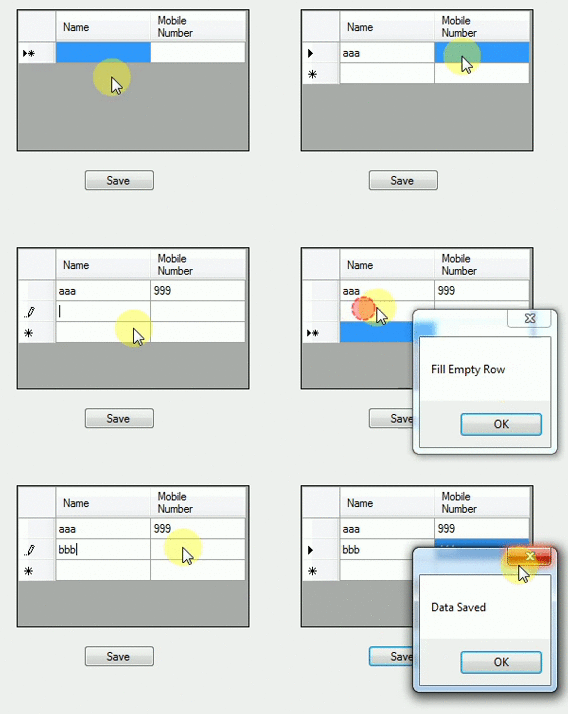
Validation For DataGridview Values Before Insert To DataBase(Avoid Null Values) Using C# Window Application

Validation For DataGridview Values Before Insert To  DataBase

DataGridview Add Directly To RunTime  Validation Null Values Avoid To Insert  DataBase Using C# Window Applicatio.

                                         DEMO


                                    C# CODING

using System;
using System.Collections.Generic;
using System.ComponentModel;
using System.Data;
using System.Drawing;
using System.Linq;
using System.Text;
using System.Threading.Tasks;
using System.Windows.Forms;
using System.Data.SqlClient;

namespace WindowsFormsApplication2
{
    public partial class Home11 : Form
    {
        public Home11()
        {
          
            InitializeComponent();
        }

        private void Home11_Load(object sender, EventArgs e)
        {
           
        }      

        private void dataGridView1_RowValidating(object sender, DataGridViewCellCancelEventArgs e)
        {
            if ((dataGridView1[0, e.RowIndex].Value == null) || (dataGridView1[1, e.RowIndex].Value == null))
            {
                // e.Cancel = true;
                MessageBox.Show("Fill Empty Row");

            }
        }

        private void button1_Click(object sender, EventArgs e)
        {
            if (dataGridView1.Rows.Count>1)
            {
                // Your Insert Command

                MessageBox.Show("Data Saved");
           
            }
        }
          
    }
}


Next - Add New Window Form - Select DataGridView - EditColumn - Add Field Name & Header Text


Next - Created DataGridView Column 


Next - DataGridview - Event - Select RowValidating Click 


Next - Add  DataGridView Validating Null Values 


Next - Run [F5]  The Program - Validation for DataGridView


Remove or Delete DataGridView Selected Row Button Click Using in C# Window application

Remove or Delete DataGridView Selected Row

DataGridview Selected Row Remove or Delete Button Click Event in C# Window Application.

                                         DEMO


     C# CODING


using System;
using System.Collections.Generic;
using System.ComponentModel;
using System.Data;
using System.Drawing;
using System.Linq;
using System.Text;
using System.Threading.Tasks;
using System.Windows.Forms;
using System.Data.SqlClient;

namespace WindowsFormsApplication2
{
    public partial class Home11 : Form
    {
        public Home11()
        {
          
            InitializeComponent();
        }

        private void Home11_Load(object sender, EventArgs e)
        {
            SqlConnection con = new SqlConnection(@"Data Source=(LocalDB)\v11.0;AttachDbFilename=C:\Users\Drizzles\Documents\Visual Studio 2012\WindowsFormsApplication2\WindowsFormsApplication2\Database1.mdf;Integrated Security=True");
            con.Open();

            SqlCommand cmd = new SqlCommand("select * from country", con);
            SqlDataAdapter adp = new SqlDataAdapter(cmd);
            DataTable dt = new DataTable();
            adp.Fill(dt);
            SqlDataReader rd = cmd.ExecuteReader();
            if (rd.Read())
            {
                dataGridView1.DataSource = dt;
            }
          }

        private void button1_Click(object sender, EventArgs e)
        {
            if (dataGridView1.Rows.Count>1)
            {
                if (dataGridView1.Rows[dataGridView1.CurrentRow.Index].IsNewRow != true)
                {
                    dataGridView1.Rows.Remove(dataGridView1.CurrentRow);
                }
            }
            else {

                MessageBox.Show("No Record(s) Found");           
            }
        }      
    }
}


First - Add New Window Form - Select DataGridview From ToolBox


Next - DataGridview Bind Database Fields   & Button Click Event - Selected Row Delete Coding For DataGridView


Run[F5] - Remove Selected Row Values


The system cannot find the file specified - Error in C# Window Application

Error Reading Resource File - The system cannot find the file specified

The Error Occur in C# Window Application  Without Resource File (Deleted Form)  Display  - Delete Debug Folder From in Solution Explorer clear Error.


                              DEMO


Run[F5] The  Program - Show The Above Error  - Remove The Debug Folder From in Solution Explorer Folder.


Next - Run The Program Without Error