Showing posts with label MouseHover. Show all posts

Highlight Gridview Row on Mouse Hover Using in Asp.Net C#

Highlight Gridview Row on Mouse Hover 

Display Gridview Row on Mouse Hover Highlight Row  Different  Color Using in Asp.Net  C#

                                 DEMO 


                      Download
                  
                    HTML Coding


<html xmlns="http://www.w3.org/1999/xhtml">
<head runat="server">
    <title>Highlight Gridview Row on Mouse Hover Using in Asp.Net C# </title>
</head>
<body>
    <form id="form1" runat="server">
    <div align="center">
        <asp:GridView ID="GridView1" runat="server" AutoGenerateColumns="False" OnRowCreated="GridView1_RowCreated">
            <Columns>
                <asp:BoundField DataField="Id" HeaderText="Id"/>
                <asp:BoundField DataField="Course" HeaderText="Course Name"/>
            </Columns>
        </asp:GridView>
    </div>
    </form>
</body>
</html> 


                             C# Coding


using System;
using System.Collections.Generic;
using System.Linq;
using System.Web;
using System.Web.UI;
using System.Web.UI.WebControls;
using System.Data.SqlClient;
using System.Data;

public partial class _Default : System.Web.UI.Page
{
    protected void Page_Load(object sender, EventArgs e)
    {
     
        SqlConnection con=new SqlConnection(System.Configuration.ConfigurationManager.ConnectionStrings["dbcon"].ToString());
        con.Open();
        SqlDataAdapter adp = new SqlDataAdapter("select * from Reg",con);
        DataTable dt = new DataTable();
        adp.Fill(dt);
        GridView1.DataSource = dt;
        GridView1.DataBind();

    }
    protected void GridView1_RowCreated(object sender, GridViewRowEventArgs e)
    {       
        if (e.Row.RowType == DataControlRowType.DataRow)
        {
            var Mouseover = "this.style.backgroundColor='lightpink'";

            var Mouseout = "this.style.backgroundColor='white'";

            e.Row.Attributes.Add("onmouseover", Mouseover);
            e.Row.Attributes.Add("onmouseout", Mouseout);
        }
    }

}

First Add New Form - Select Gridview From Toolbox


Next  - Gridview - Edit Column - Add Header Text & Data field


Next - Gridview - Property  Select - RowCreated Event - Double Click


Add - Color For Gridview Row on Mouse Hover


Show Image Hover Effect Using CSS Style in Asp.Net

Show Image Hover Effect Using CSS Style 

Cursor Move To Display Image  Show Some Effects on MouseHover in Using CSS Style in Asp.Net.

                               Download Coding
                                                 Download

                                    DEMO


                        HTML CODING


<html xmlns="http://www.w3.org/1999/xhtml">
<head runat="server">
    <title>Show Image Hover Effect Using CSS Style in Asp.Net </title>
     <style>
        .ShowEffect:hover
        {
              box-shadow: 0 0 95px yellow;           
             width: 250px;
             height :250px;  
             -moz-box-shadow: 0 0 95px yellow;
              -webkit-box-shadow: 0 0 95px yellow;
        }
    </style>
</head>
<body>
    <form id="form1" runat="server">
        <div align="center">
            <br />
            <br />
<div class="ShowEffect" >  
         <asp:Image ID="Image1"  runat="server" ImageUrl="~/Koala.jpg" Height ="250px" Width="250px" />
    </div></div>
    </form>
</body>
</html>


First Create New WebForm - Add Image Control From ToolBox - Property[F4] - ImageURL - Add Iamge


Next - Add Style for Hover Add Class To Image Div


Highlight GridView Row Values on MouseHover Using JQuery in Asp.Net C#

Highlight GridView Row Values on MouseHover

Display Gridview Details Want To Highlight GridView Row on Mousehover Using JQuery in Asp.Net C#.

                    Download Coding
                        
                       Download

                            DEMO
                    

HTML CODING

<html xmlns="http://www.w3.org/1999/xhtml">

<head id="Head1" runat="server">
    <title>HighLight GridView Row on MouseHover Using JQuery</title>
       <script type="text/javascript" src="http://code.jquery.com/jquery-1.8.2.min.js"></script>
    <script type="text/javascript" lang="javascript">
        $(document).ready(function ()
        {            $("#<%=GridView1.ClientID%> tr").hover(
            function ()
            {
                $(this).css("background-color", "pink");
            },
            function ()
            {
                $(this).css("background-color", "white");
            });
        });
    </script>
</head>
<body>
    <form id="form1" runat="server">
    <div align="center">
    <br /><br />
        <asp:GridView ID="GridView1" runat="server" ShowHeader="true" AutoGenerateColumns="False">
            <AlternatingRowStyle BackColor="Silver" />
            <Columns>
                <asp:BoundField ShowHeader="true" DataField="filename" HeaderText="File Name" />
                <asp:BoundField ShowHeader="true" DataField="filepath" HeaderText="File Path" />
            </Columns>
            <HeaderStyle BackColor="#CC3300" />
        </asp:GridView>
        <br />
    </div>
    </form>
</body>
</html>


C# CODING

using System;

using System.Collections.Generic;
using System.Linq;
using System.Web;
using System.Web.UI;
using System.Web.UI.WebControls;
using System.Data;
using System.Data.SqlClient; 

public partial class _Default : System.Web.UI.Page
{
    protected void Page_Load(object sender, EventArgs e)
    {
         SqlConnection con = new        SqlConnection(System.Configuration.ConfigurationManager.ConnectionStrings["dbcon"].ToString());
        con.Open();
        SqlCommand cmd = new SqlCommand("select * from reg", con);
        SqlDataAdapter adp = new SqlDataAdapter(cmd);
        DataSet ds = new DataSet();
        adp.Fill(ds);
        GridView1.DataSource = ds;
        GridView1.DataBind();
    }
}


First Create - New Web Form - Add Gridview From 

ToolBox - Edit Column - Add BoundField - Add 


Next - Change Header Text For BoundField - Add Database Field Name


Next - Add - Script File Call JQuery Plugin - Assign Gridview if Mouse


Tooltip Show in Gridview Row Details on MouseHover Using JQuery in Asp.Net C#

Tooltip Show in Gridview Row Details  on MouseHover

GridView Show Details After Button Click ViewDetail or More Details But Now Show ToolTip Of  GridView Row Full Details Using in JQuery Plugins in Asp.Net C#.

                 Download Coding

                      Download


                       DEMO 

                                
             HTML CODING


<html xmlns="http://www.w3.org/1999/xhtml">
<head runat="server">
    <title></title>
   <script src="http://code.jquery.com/jquery-1.8.2.js" type="text/javascript"></script>
    <script src="JQuery/jquery.tooltip.min.js" type="text/javascript"></script>
    <script type="text/javascript">
        function InitializeToolTip() {
            $(".Showtooltip").tooltip({
                track: true,
                delay: 0,
                showURL: false,
                fade: 150,
                bodyHandler: function () {
                    return $($(this).next().html());
                },
                showURL: false
            });
        }
    </script>
    <script type="text/javascript">
        $(function () {
            InitializeToolTip();
        })
    </script>
    <style type="text/css">
    a {text-decoration: none;}
    a :hover {color: #F7100C;}
   
        #tooltip    {
       width: 320px;
   height: 80px;
   background: silver;
   position: absolute;
   -moz-border-radius:    10px;
   -webkit-border-radius: 10px;
   border-radius:         10px;
}
      
        #tooltip h3, #tooltip div
        { 
            margin: 0;
        }
    </style>

</head>
<body>
    <form id="form1" runat="server">
    <div  align="center">
    <asp:GridView ID="GridView1" runat="server"  AutoGenerateColumns="False">       
    <Columns>
    <asp:TemplateField HeaderText="User Details">
<ItemStyle Width="100px" HorizontalAlign="Center" />
<ItemTemplate>
    <asp:LinkButton ID="LinkButton1" class="Showtooltip" Text="Full Details" runat="server" ForeColor="#FF6600"></asp:LinkButton>
<div id="tooltip" style="display: none;">
<table>
<tr>
<td><b>File Name:</b></td>
<td><%# Eval("filename")%></td>
</tr>
<tr>
<td><b>File Path:</b></td>
<td><%# Eval("filepath")%></td>
</tr>

</table>
</div>
</ItemTemplate>
</asp:TemplateField>
    </Columns>
        <AlternatingRowStyle  BackColor="#CCCCCC" />
        <HeaderStyle ForeColor="Red" />
    </asp:GridView>

    </div>
    </form>
</body>
</html>


            C# CODING


using System;
using System.Collections.Generic;
using System.Linq;
using System.Web;
using System.Web.UI;
using System.Web.UI.WebControls;
using System.Data;
using System.Data.SqlClient; 

public partial class ToolTip : System.Web.UI.Page
{
    protected void Page_Load(object sender, EventArgs e)
    {
        SqlConnection con = new
        SqlConnection(System.Configuration.ConfigurationManager.ConnectionStrings["dbcon"].ToString());
        con.Open();
        SqlCommand cmd = new SqlCommand("select * from reg", con);
        SqlDataAdapter adp = new SqlDataAdapter(cmd);
        DataSet ds = new DataSet();
        adp.Fill(ds);
        GridView1.DataSource = ds;
        GridView1.DataBind();
    }   

}


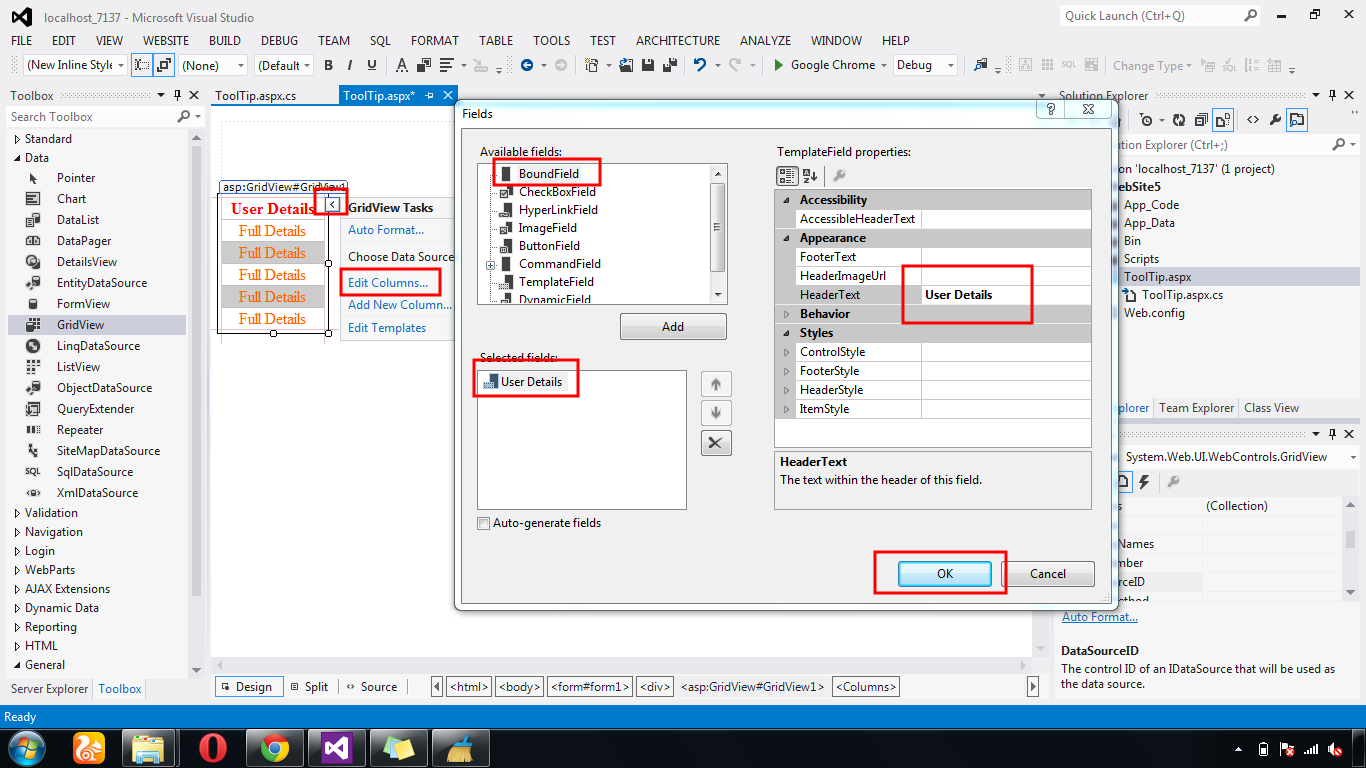
First Create New WebForm - Add GridView From 

ToolBox 


Next - Gridview - Edit Column - Add Bound Field - Enter Header Text - OK


Next  - Add JQuery ToolTip Plugin  - Call Javascript


Next  - Table Create Bind Field Names Inside Div 


Next - Add Select Query  For Gridview Bind All Detail