Showing posts with label Query. Show all posts

Find Maximum Number From DataBase Table Values Using Sql in Asp.Net c#

Find Maximum Number Of DataBase Table Values Using Sql


Find Maximum Number of Already Registered Values From DataBase Table Using Sql Query in Asp.Net C#.


DMEO


HTML CODING


<html xmlns="http://www.w3.org/1999/xhtml">
<head runat="server">
    <title></title>
</head>
<body>
    <form id="form1" runat="server">
    <div>
   
        <asp:Button ID="Button1" runat="server" OnClick="Button1_Click" Text="Get Maximum Values" />
        <asp:Label ID="lblMaximum" runat="server" ForeColor="Red" Height="29px" Width="276px"></asp:Label>
   
    </div>
    </form>
</body>
</html>


                           C# Coding

//  Maximum Value Get

using System;
using System.Collections.Generic;
using System.Linq;
using System.Web;
using System.Web.UI;
using System.Web.UI.WebControls;
using System.Data.SqlClient;
using System.Data;

public partial class Max : System.Web.UI.Page
{
    protected void Page_Load(object sender, EventArgs e)
    {

    }
    protected void Button1_Click(object sender, EventArgs e)
    {
        SqlConnection con = new SqlConnection(System.Configuration.ConfigurationManager.ConnectionStrings["dbcon"].ToString());
        con.Open();

        SqlCommand cmd = new SqlCommand

  ("select MAX (CAST(  amount as INT)) from reg)", con);

        SqlDataReader rd = cmd.ExecuteReader();

        if (rd.Read())
        {

            lblMaximum.Text = "Third Maximum Amount = "+rd[0].ToString();
        
        }

    }
}


// Second Maximum Value Get

using System;
using System.Collections.Generic;
using System.Linq;
using System.Web;
using System.Web.UI;
using System.Web.UI.WebControls;
using System.Data.SqlClient;
using System.Data;

public partial class Max : System.Web.UI.Page
{
    protected void Page_Load(object sender, EventArgs e)
    {

    }
    protected void Button1_Click(object sender, EventArgs e)
    {
        SqlConnection con = new SqlConnection(System.Configuration.ConfigurationManager.ConnectionStrings["dbcon"].ToString());
        con.Open();

        SqlCommand cmd = new SqlCommand

  ("select MAX (CAST(  amount as INT)) from reg where amount NOT IN ( select TOP 1 (amount) from reg order by amount desc)", con);

        SqlDataReader rd = cmd.ExecuteReader();

        if (rd.Read())
        {

            lblMaximum.Text = "Second Maximum Amount = "+rd[0].ToString();
        
        }

    }
}


                  // Third Maximum Value Get

using System;
using System.Collections.Generic;
using System.Linq;
using System.Web;
using System.Web.UI;
using System.Web.UI.WebControls;
using System.Data.SqlClient;
using System.Data;

public partial class Max : System.Web.UI.Page
{
    protected void Page_Load(object sender, EventArgs e)
    {

    }
    protected void Button1_Click(object sender, EventArgs e)
    {
        SqlConnection con = new SqlConnection(System.Configuration.ConfigurationManager.ConnectionStrings["dbcon"].ToString());
        con.Open();

        SqlCommand cmd = new SqlCommand

  ("select MAX (CAST(  amount as INT)) from reg where amount NOT IN ( select TOP 2 (amount) from reg order by amount desc)", con);

        SqlDataReader rd = cmd.ExecuteReader();

        if (rd.Read())
        {

            lblMaximum.Text = "Third Maximum Amount = "+rd[0].ToString();
        
        }

    }
}


First -  Add  - New WebForm  - Select Button & Label From ToolBox


Next - Add DataBase Values  


Next - Sql Max Number Query & Convert To Integer 


Next - Run [F5]  Get Maximum Number


Next -   Sql Second Max Number Query & Convert To Integer 


Next - Run [F5]  Get Second Maximum Number


Next -   Sql Third Max Number Query & Convert To Integer 


Next - Run [F5]  Get Third Maximum Number


Difference Between ExecuteNonQuery() And ExecuteScalar() Methods Using ADO.NET


Difference Between ExecuteNonQuery() And ExecuteScalar()


      ExecuteNonQuery()       ExecuteScalar()
1
It Returns the count of Rows Effected by the Query.
It Returns the First Row and First Column Value of the Query.
2
Int in Return Type.
Object in Return Type.
3
ExecuteNonQuery() works  Queries only. Create,Alter,Drop,Insert,Update,Delete.
ExecuteScalar() works Only Aggregate Functions
Max,Min,Count,Sum,Total.
4
Can be assigned to an integer variable.
Return value is optional.
Return value is Compulsory.
5
SqlCommand cmd=new SqlCommand();
cmd.ExecuteNonQuery();
SqlCommand cmd=new SqlCommand();
id = (Int16)cmd.ExecuteScalar();

return id;


How to Insert New Row Using GridView Footer in Asp.Net.


Insert New Row Using  GridView Footer


Gridview Bind to Data Table. But Add Gridview Footer  Row Directly.


Insert Data Using Gridview Footer Row 

                                                DEMO


Html Coding


<%@ Page Language="C#" AutoEventWireup="true" CodeFile="Default.aspx.cs" Inherits="_Default" %>

<!DOCTYPE html>


<html xmlns="http://www.w3.org/1999/xhtml">
<head id="Head1" runat="server">
    <title></title>
</head>
<body>
    <form id="form1" runat="server">
    <div>
   
        <asp:gridview ID="Gridview1" runat="server" AutoGenerateColumns="False"
            OnSelectedIndexChanged="Gridview1_SelectedIndexChanged" ShowFooter="True">
             <Columns>
           <asp:TemplateField HeaderText="Action">
             <FooterTemplate>
             <asp:LinkButton ID="LinkButton1" runat="server"
                  CommandName="Select">Insert</asp:LinkButton>
             </FooterTemplate>
             </asp:TemplateField>
             <asp:TemplateField HeaderText="Name">
             <FooterTemplate>
             <asp:TextBox ID="txtName" runat="server"></asp:TextBox>
             </FooterTemplate>
             <ItemTemplate>
             <asp:Label ID="Label1" runat="server" Text='<%# Eval("name"%>'></asp:Label>
             </ItemTemplate>
             </asp:TemplateField>
             <asp:TemplateField HeaderText="Email ID">
             <FooterTemplate>
            <asp:TextBox ID="txtEmailID" runat="server"></asp:TextBox>
            </FooterTemplate>
            <ItemTemplate>
            <asp:Label ID="Label2" runat="server" Text='<%# Eval("email"%>'></asp:Label>
            </ItemTemplate>
            </asp:TemplateField>
            <asp:TemplateField HeaderText="City">
            <FooterTemplate>
           <asp:TextBox ID="txtCity" runat="server"></asp:TextBox>
          </FooterTemplate>
          <ItemTemplate>
         <asp:Label ID="Label3" runat="server" Text='<%# Eval("city"%>'></asp:Label>
         </ItemTemplate>
        </asp:TemplateField>
             </Columns>
        </asp:gridview>
       
    </div>
    </form>
</body>
</html>


C# Coding


using System;
using System.Collections.Generic;
using System.Linq;
using System.Web;
using System.Web.UI;
using System.Web.UI.WebControls;
using System.Data;
using System.Data.SqlClient;

public partial class Grid_Insert : System.Web.UI.Page
{

    SqlConnection con;
    SqlCommand cmd;
    SqlDataAdapter adp;
    SqlDataReader rd;
    DataSet ds;
    string query;


    public void dbcon()
    {
        string connn = (System.Configuration.ConfigurationManager.
ConnectionStrings["dbcon"].ToString());
        con = new SqlConnection(connn);
        con.Open();

    }

    protected void Page_Load(object sender, EventArgs e)
    {
        if (!IsPostBack)
        {
            bind11();
        }
    }


    protected void bind11()
    {
        dbcon();
        query = "select * from grid";
        cmd = new SqlCommand(query, con);
        adp = new SqlDataAdapter(cmd);
        ds = new DataSet();
        adp.Fill(ds);
        rd = cmd.ExecuteReader();
        if (ds.Tables[0].Rows.Count > 0)
        {
            Gridview1.DataSource = ds;
            Gridview1.DataBind();
        }
        else
        {
            ds.Tables[0].Rows.Add(ds.Tables[0].NewRow());
            Gridview1.DataSource = ds;
            Gridview1.DataBind();
            int columncount = Gridview1.Rows[0].Cells.Count;
            Gridview1.Rows[0].Cells.Clear();
           // GridView1.FooterRow.Cells.Clear();
            Gridview1.Rows[0].Cells.Add(new TableCell());
            Gridview1.Rows[0].Cells[0].ColumnSpan
 = columncount;
            Gridview1.Rows[0].Cells[0].Text = "No Records Found";
        }
    }


    protected void Gridview1_SelectedIndexChanged(object sender, EventArgs e)
    {

        TextBox txtNamee = (TextBox)Gridview1.FooterRow.
FindControl("txtName");
        TextBox txtEmaill = (TextBox)Gridview1.FooterRow.
FindControl("txtEmailID");
        TextBox txtCity = (TextBox)Gridview1.FooterRow.
FindControl("txtCity");

        dbcon();
  query = "insert into grid (name,email,city)values('"+txtNamee.Text+"',
'"+txtEmaill.Text+"','"+txtCity.Text+"')";
        cmd = new SqlCommand(query, con);
        cmd.ExecuteNonQuery();
        con.Close();

        bind11();
    }

}


First - Add the New - WebForm Grid_Insert.aspx


Next - Add the  GridView From Toolbox 


Next - Create the  Table &  Add the Fields(Requireds)


Next - Right Click GridView  -  Select - Edit Column


Add  -  TemplateFields  &  Remove - Auto Generate Fields - OK 


Next - Change the  All the  Templates Fields Header Text  Name


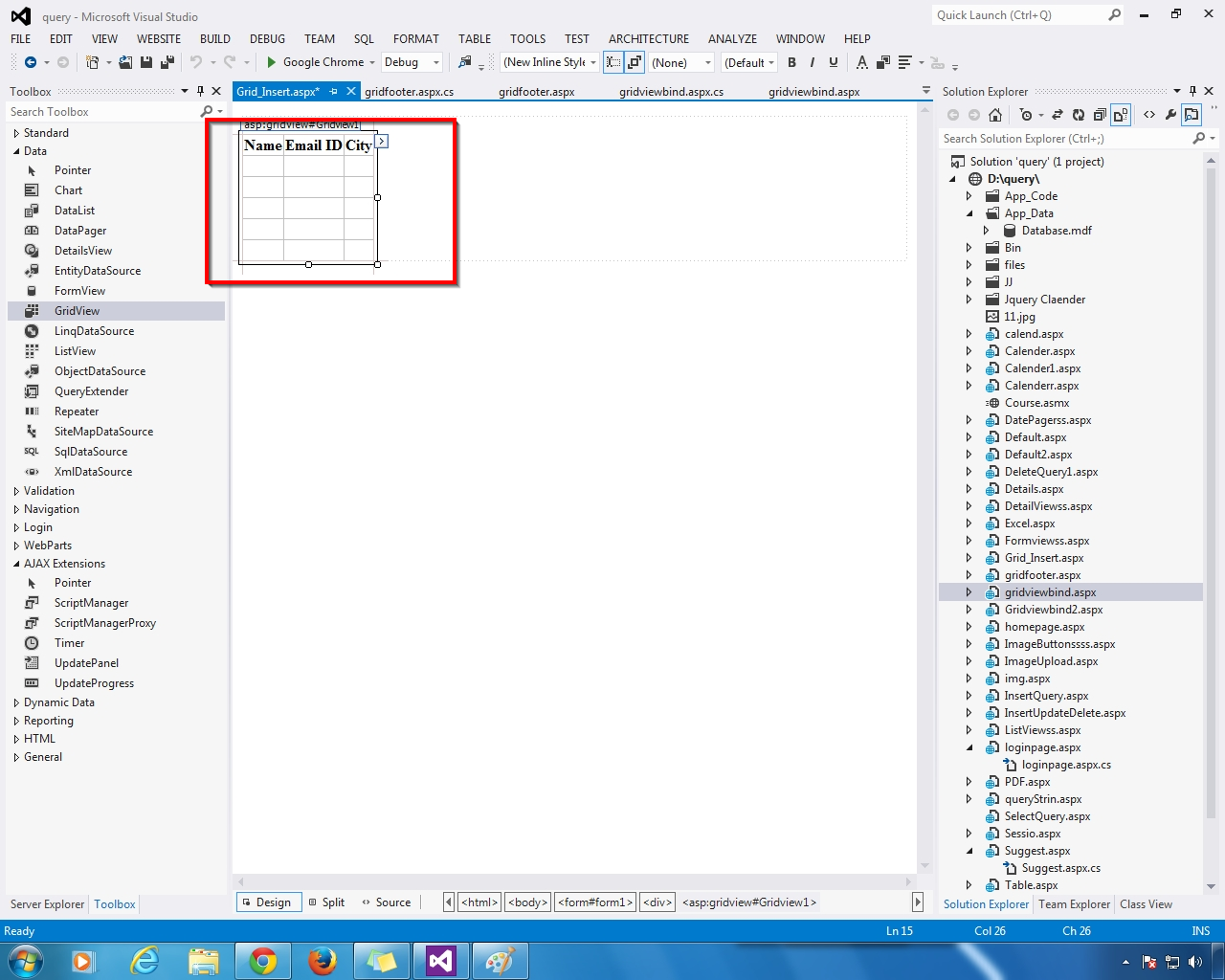
Next - Show the  GridView Colum Names


Right Click- GridView - Select - Edit Templates


Next - Add the Label to  Item Tempaltes  & Add Field Name = name to Edit DataBinding  


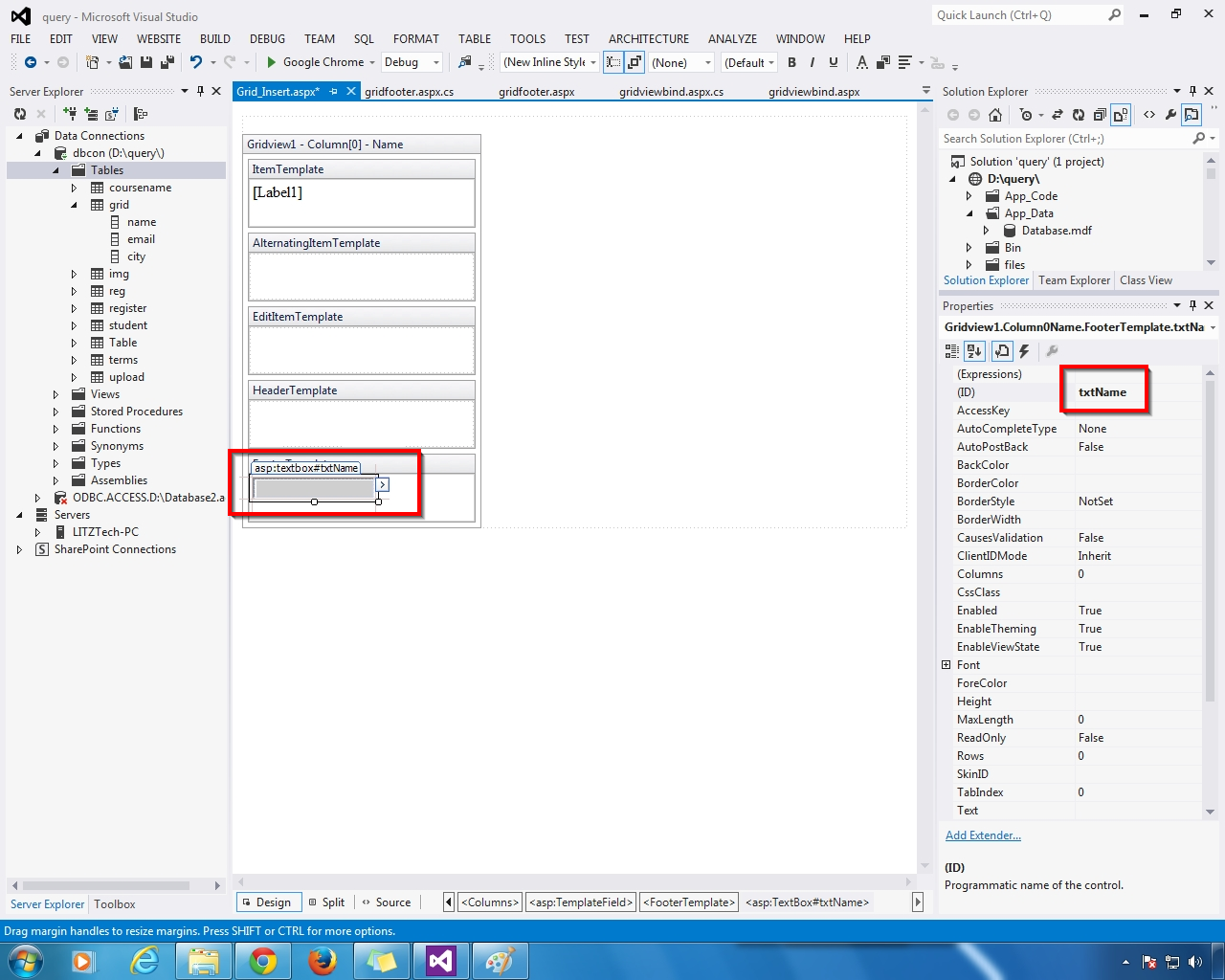
Next - Footer Templates Add TextBox  Change the ID


Next - Add the Label to  Item Tempaltes  & Add Field Name = email to Edit DataBinding  


Next - Footer Templates Add TextBox  Change the ID


 Next - Add the Label to  Item Tempaltes  & Add Field Name = city to Edit DataBinding  


Next - Footer Templates Add TextBox  Change the ID


Next - Select Edit Template Editing


Next - Select Edit column - Add Template Fields  Header Action


Next - Select  Action Column Footer Row  - Insert Linkbutton - Text = Insert & CommandName= Select


Select - Edit Template - Show The GridView  Below Like That


Next - GridView - Property - Select - ShowFooter = True


Next - Show the Html Coding


Next - Go To - Coding Part - Add NameSpaces &  Database Connection 


New Class  Create - Select Table  & Double Click the GridView - Open -  Select Index Changed  

Select - GridView Footer Row TextBox Id  

Next - Insert  the Selected Values


Next - Select WebForm - Right Click - View in Browser (Run F5)


OUTPUT


 grid Table Empty  - Show No Records Found


Next - Insert  Values - Footer Row TextBox  &  Insert button Click


                     Inserted Values & Bind


Next - Insert Values & Insert Button Click


Bind The Inserted Values