Showing posts with label Footer Row. Show all posts

Enable or Disable TextBox in GridView With Footer Total When Checkbox is Checked in ASP.Net C#

Enable or Disable TextBox in GridView With Footer Total When Checkbox is Checked

GridView Row  Ckeckbox is Checked  Enable Textbox  Enter Amount Finally Get Total Footer Row Using Asp.Net C#.

                  Download Coding
                                Download

                         DEMO


                 HTML CODING


<html xmlns="http://www.w3.org/1999/xhtml">
<head runat="server">
    <title></title>
</head>
<body>
    <form id="form1" runat="server">
    <div align="center">
       
        <asp:GridView ID="GridView1" runat="server" AutoGenerateColumns="False"  ShowFooter="True">
            <Columns>
                <asp:TemplateField HeaderText="Check">
                    <ItemTemplate>
                        <asp:CheckBox ID="CheckBox1" runat="server" AutoPostBack="True" OnCheckedChanged="CheckBox1_CheckedChanged" />
                    </ItemTemplate>
                </asp:TemplateField>
                <asp:TemplateField HeaderText="ID">
                    <ItemTemplate>
                        <asp:Label ID="Label1" runat="server" Text='<%# Eval("id") %>'></asp:Label>
                    </ItemTemplate>
                </asp:TemplateField>
                <asp:TemplateField HeaderText="Name">
                    <ItemTemplate>
                        <asp:Label ID="Label2" runat="server" Text='<%# Eval("name") %>'></asp:Label>
                    </ItemTemplate>
                </asp:TemplateField>
                <asp:TemplateField HeaderText="Quantity">
                    <ItemTemplate>
                        <asp:TextBox ID="txtQt" runat="server" Enabled="False"></asp:TextBox>
                    </ItemTemplate>
                </asp:TemplateField>
                <asp:TemplateField HeaderText="Amount">
                    <FooterTemplate>
                        <asp:Label ID="lblTotal" runat="server" ForeColor="#CC3300"></asp:Label>
                        &nbsp;&nbsp;&nbsp;&nbsp;
                        <asp:Button ID="Button1" runat="server" OnClick="Button1_Click" Text="Total" />
                    </FooterTemplate>
                    <ItemTemplate>
                        <asp:TextBox ID="txtAmt" runat="server" Enabled="false"></asp:TextBox>
                    </ItemTemplate>
                </asp:TemplateField>
            </Columns>
        </asp:GridView>
    </div>
            </form>
</body>

</html>

                    C# CODING


using System;
using System.Collections.Generic;
using System.Linq;
using System.Web;
using System.Web.UI;
using System.Web.UI.WebControls;
using System.Data;
using System.Data.SqlClient;

public partial class _Default : System.Web.UI.Page
{
    protected void Page_Load(object sender, EventArgs e)
    {
        if (!IsPostBack)
        {
            SqlConnection con = new SqlConnection(System.Configuration.ConfigurationManager.ConnectionStrings["dbcon"].ToString());
            con.Open();
            SqlDataAdapter adp = new SqlDataAdapter("select * from reg", con);
            DataSet ds = new DataSet();
            adp.Fill(ds);
            GridView1.DataSource = ds;
            GridView1.DataBind();
        }
    }
    protected void CheckBox1_CheckedChanged(object sender, EventArgs e)
    {
        CheckBox chk = (CheckBox)sender;
        GridViewRow gr = (GridViewRow)chk.NamingContainer;
        CheckBox ch = (CheckBox)gr.FindControl("CheckBox1");
        TextBox txtQt = (TextBox)gr.FindControl("txtQt");
        TextBox txtAmt = (TextBox)gr.FindControl("txtAmt");
        if (chk.Checked)
        {
            txtAmt.Enabled = true;
            txtQt.Enabled = true;
        }
        else
        {
            txtQt.Text = "";
            txtAmt.Text = "";
            txtAmt.Enabled =false;
            txtQt.Enabled =false;
        }

    }
    protected void Button1_Click(object sender, EventArgs e)
    {    
  
        // Footer total Button
        int total1=0;
        foreach (GridViewRow gr in GridView1.Rows)
        {
            CheckBox ch = (CheckBox)gr.FindControl("CheckBox1");
          
            if (ch.Checked & ch!=null)
            {
                TextBox txtAmt = (TextBox)gr.FindControl("txtAmt");
                Label lbltotal = GridView1.FooterRow.FindControl("lblTotal") as Label;
              total1  += Convert.ToInt32(txtAmt.Text);
              lbltotal.Text = total1.ToString();
            }       
        }
    }
  

}


First Create New Webform - Add GridView  From Toolbox - Edit Column - Add TemplateField -  Ok


Next - Add Header Text Name


Next - GridView Edit Template Field - Add Label - Edit DataBinding - Bind Field Name


Next - GridView Edit Template Field - Add Textbox - Property - Enable = false


After - DataBound Show GridView


Next - GridView Edit Column - Template Field 


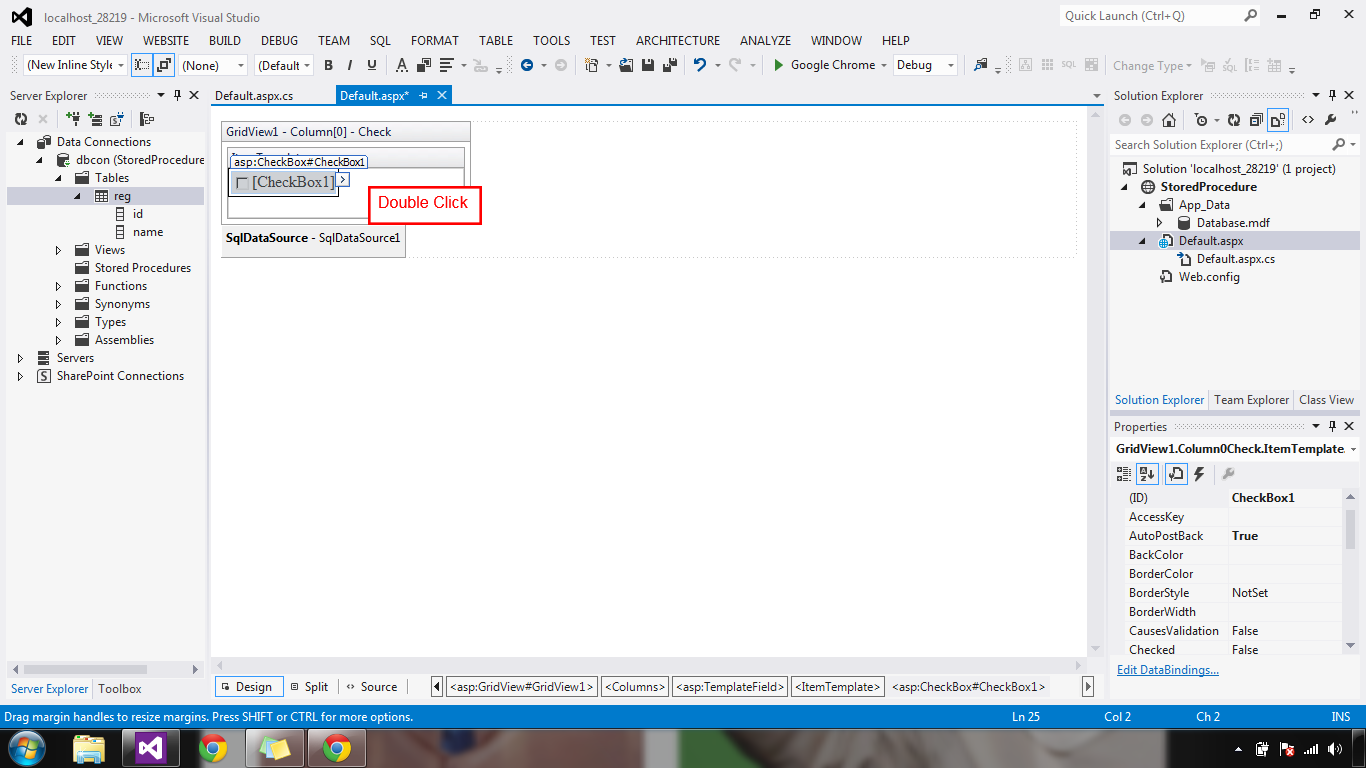
GridView - Edit Template Field - Add Checkbox - AutoPostback =true


Checkbox - Double Click 


Next - Textbox - Enabled = false


Next - Show GridView After Bind Checkbox 


Next - Add Namespaces -  Gridview row  Event -  Checkbox is Checked - Row Event Values Get & enabled= true


Next - Get Total Values to Footer Row


How to Insert New Row Using GridView Footer in Asp.Net.


Insert New Row Using  GridView Footer


A Gridview Bind to Data Table. But Add Gridview Footer  Row Directly.


Insert Data Using Gridview Footer Row 

                                                DEMO


Html Coding


<%@ Page Language="C#" AutoEventWireup="true" CodeFile="Default.aspx.cs" Inherits="_Default" %>

<!DOCTYPE html>


<html xmlns="http://www.w3.org/1999/xhtml">
<head id="Head1" runat="server">
    <title></title>
</head>
<body>
    <form id="form1" runat="server">
    <div>
   
        <asp:gridview ID="Gridview1" runat="server" AutoGenerateColumns="False"
            OnSelectedIndexChanged="Gridview1_SelectedIndexChanged" ShowFooter="True">
             <Columns>
           <asp:TemplateField HeaderText="Action">
             <FooterTemplate>
             <asp:LinkButton ID="LinkButton1" runat="server"
                  CommandName="Select">Insert</asp:LinkButton>
             </FooterTemplate>
             </asp:TemplateField>
             <asp:TemplateField HeaderText="Name">
             <FooterTemplate>
             <asp:TextBox ID="txtName" runat="server"></asp:TextBox>
             </FooterTemplate>
             <ItemTemplate>
             <asp:Label ID="Label1" runat="server" Text='<%# Eval("name") %>'></asp:Label>
             </ItemTemplate>
             </asp:TemplateField>
             <asp:TemplateField HeaderText="Email ID">
             <FooterTemplate>
            <asp:TextBox ID="txtEmailID" runat="server"></asp:TextBox>
            </FooterTemplate>
            <ItemTemplate>
            <asp:Label ID="Label2" runat="server" Text='<%# Eval("email") %>'></asp:Label>
            </ItemTemplate>
            </asp:TemplateField>
            <asp:TemplateField HeaderText="City">
            <FooterTemplate>
           <asp:TextBox ID="txtCity" runat="server"></asp:TextBox>
          </FooterTemplate>
          <ItemTemplate>
         <asp:Label ID="Label3" runat="server" Text='<%# Eval("city") %>'></asp:Label>
         </ItemTemplate>
        </asp:TemplateField>
             </Columns>
        </asp:gridview>
       
    </div>
    </form>
</body>
</html>


C# Coding


using System;
using System.Collections.Generic;
using System.Linq;
using System.Web;
using System.Web.UI;
using System.Web.UI.WebControls;
using System.Data;
using System.Data.SqlClient;

public partial class Grid_Insert : System.Web.UI.Page
{

    SqlConnection con;
    SqlCommand cmd;
    SqlDataAdapter adp;
    SqlDataReader rd;
    DataSet ds;
    string query;


    public void dbcon()
    {
        string connn = (System.Configuration.ConfigurationManager.
ConnectionStrings["dbcon"].ToString());
        con = new SqlConnection(connn);
        con.Open();

    }

    protected void Page_Load(object sender, EventArgs e)
    {
        if (!IsPostBack)
        {
            bind11();
        }
    }


    protected void bind11()
    {
        dbcon();
        query = "select * from grid";
        cmd = new SqlCommand(query, con);
        adp = new SqlDataAdapter(cmd);
        ds = new DataSet();
        adp.Fill(ds);
        rd = cmd.ExecuteReader();
        if (ds.Tables[0].Rows.Count > 0)
        {
            Gridview1.DataSource = ds;
            Gridview1.DataBind();
        }
        else
        {
            ds.Tables[0].Rows.Add(ds.Tables[0].NewRow());
            Gridview1.DataSource = ds;
            Gridview1.DataBind();
            int columncount = Gridview1.Rows[0].Cells.Count;
            Gridview1.Rows[0].Cells.Clear();
           // GridView1.FooterRow.Cells.Clear();
            Gridview1.Rows[0].Cells.Add(new TableCell());
            Gridview1.Rows[0].Cells[0].ColumnSpan
 = columncount;
            Gridview1.Rows[0].Cells[0].Text = "No Records Found";
        }
    }


    protected void Gridview1_SelectedIndexChanged(object sender, EventArgs e)
    {

        TextBox txtNamee = (TextBox)Gridview1.FooterRow.
FindControl("txtName");
        TextBox txtEmaill = (TextBox)Gridview1.FooterRow.
FindControl("txtEmailID");
        TextBox txtCity = (TextBox)Gridview1.FooterRow.
FindControl("txtCity");

        dbcon();
  query = "insert into grid (name,email,city)values('"+txtNamee.Text+"',
'"+txtEmaill.Text+"','"+txtCity.Text+"')";
        cmd = new SqlCommand(query, con);
        cmd.ExecuteNonQuery();
        con.Close();

        bind11();
    }

}


First - Add the New - WebForm Grid_Insert.aspx


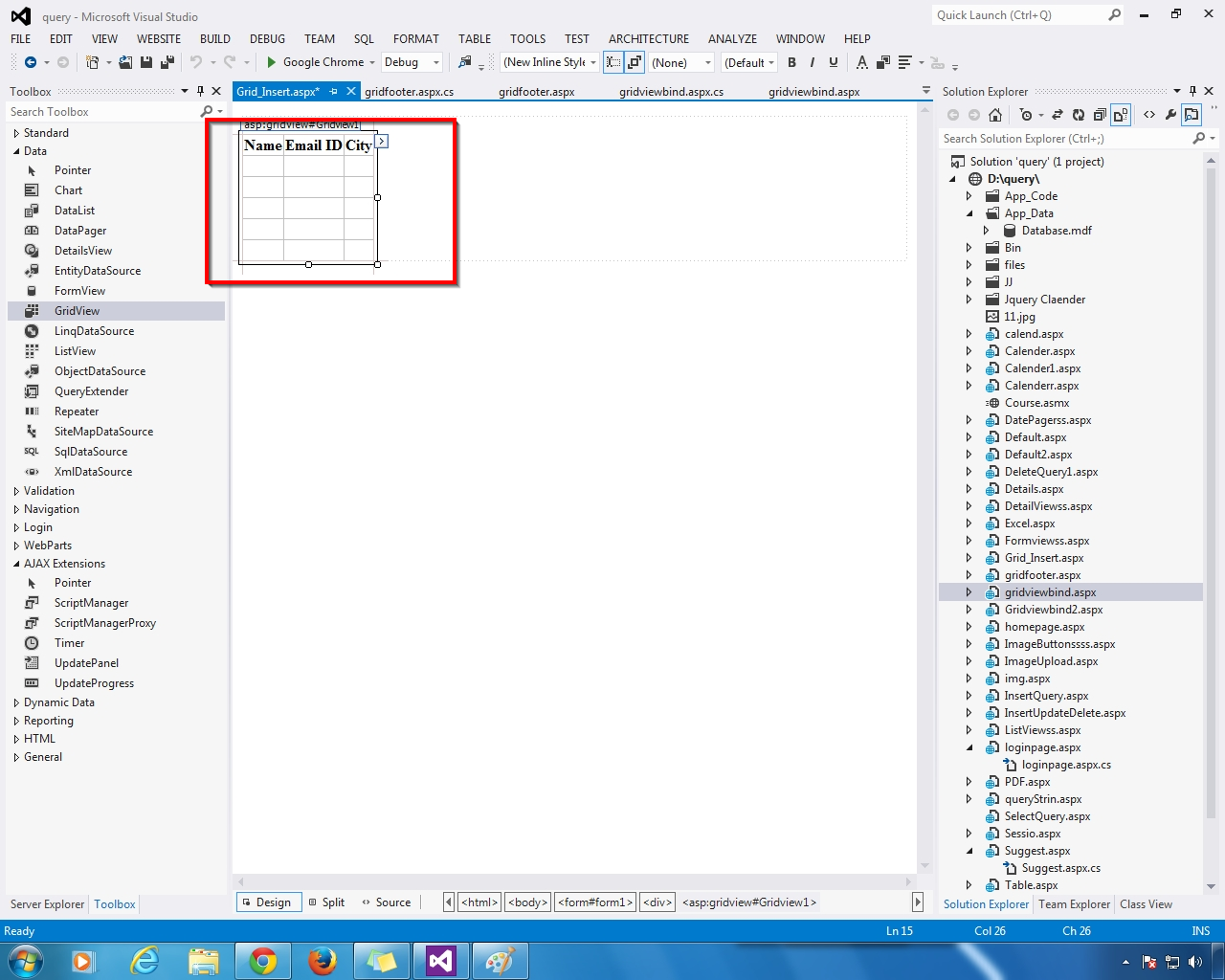
Next - Add the  GridView From Toolbox 


Next - Create the  Table &  Add the Fields(Requireds)


Next - Right Click GridView  -  Select - Edit Column


Add  -  TemplateFields  &  Remove - Auto Generate Fields - OK 


Next - Change the  All the  Templates Fields Header Text  Name


Next - Show the  GridView Colum Names


Right Click- GridView - Select - Edit Templates


Next - Add the Label to  Item Tempaltes  & Add Field Name = name to Edit DataBinding  


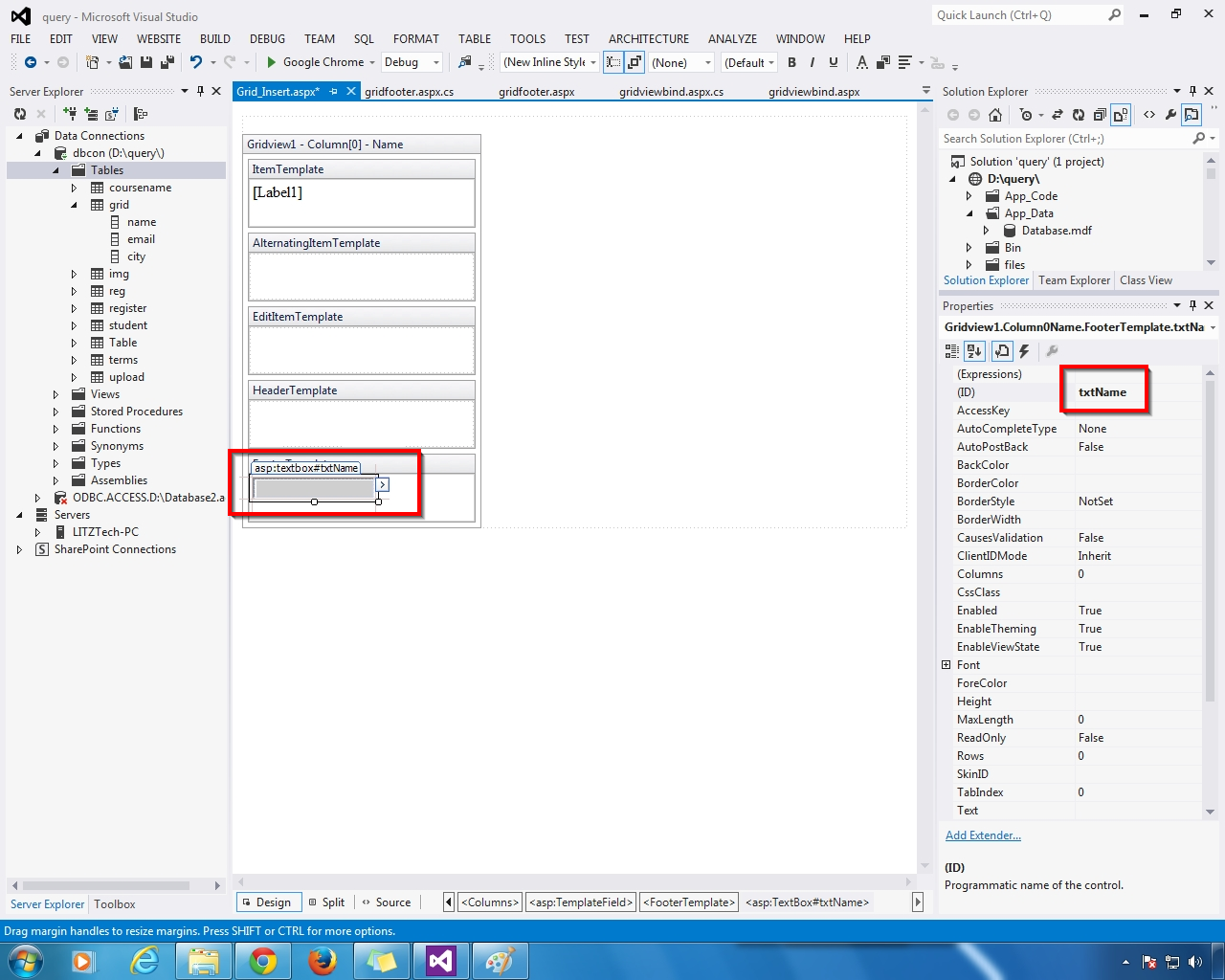
Next - Footer Templates Add TextBox  Change the ID


Next - Add the Label to  Item Tempaltes  & Add Field Name = email to Edit DataBinding  


Next - Footer Templates Add TextBox  Change the ID


 Next - Add the Label to  Item Tempaltes  & Add Field Name = city to Edit DataBinding  


Next - Footer Templates Add TextBox  Change the ID


Next - Select Edit Template Editing


Next - Select Edit column - Add Template Fields  Header Action


Next - Select  Action Column Footer Row  - Insert Linkbutton - Text = Insert & CommandName= Select


Select - Edit Template - Show The GridView  Below Like That


Next - GridView - Property - Select - ShowFooter = True


Next - Show the Html Coding


Next - Go To - Coding Part - Add NameSpaces &  Database Connection 


New Class  Create - Select Table  & Double Click the GridView - Open -  Select Index Changed  

Select - GridView Footer Row TextBox Id  

Next - Insert  the Selected Values


Next - Select WebForm - Right Click - View in Browser (Run F5)


OUTPUT


 grid Table Empty  - Show No Records Found


Next - Insert  Values - Footer Row TextBox  &  Insert button Click


                     Inserted Values & Bind


Next - Insert Values & Insert Button Click


Bind The Inserted Values